


Microsoft OneDrive
4.6114.89K Reviews
App Specs
- Version
- Varies with Device
- Updated On
- License
- Free
- Downloads
- 5,000,000,000+
- Developer
- Microsoft Corporation
- Categories
- Productivity
- Platform
- Android, iOS
Screenshots


 Analysis by AppCompare
I find cloud storage most useful when it quietly removes small hassles: moving a document from a phone to a computer, finding a receipt later, or sending someone the right version of a file. Microsoft OneDrive is built for those routines, especially if you already use Microsoft tools. It is a free productivity app from Microsoft Corporation, available for Android and iOS, and its long-standing presence is reflected in a 4.6 average from around 7.1 million ratings. That popularity makes it easy to consider, but whether it suits you depends on how you organize files and which devices you use.
Getting Started with OneDrive
First things first, setting up Microsoft OneDrive is a breeze. All you need is a Microsoft account, and you're good to go. Once you download the app from the Play Store or App Store, you're greeted with a clean, intuitive interface that’s all about functionality. Trust me, even if you’re not a tech wizard, navigating through OneDrive feels like a walk in the park.
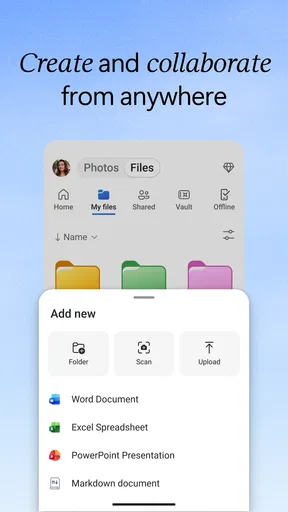
The app seamlessly integrates with other Microsoft services like Word, Excel, and PowerPoint, which is a massive plus if you’re already invested in the Microsoft ecosystem. But don't worry, even if you're not, OneDrive plays nicely with others, allowing you to store and access a wide range of file types.
Guides and Analysis on Microsoft OneDrive
Storage Galore
One of the biggest draws of OneDrive is the generous amount of storage it offers. You start with 5GB for free, which is perfect for storing documents, photos, and a few videos. If you're anything like me and tend to hoard digital content, upgrading to a premium plan gives you a whopping 1TB of storage. That’s a ton of space for your digital life!
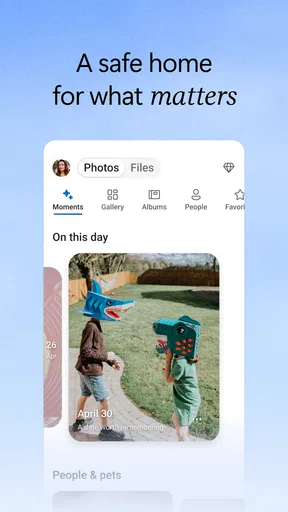
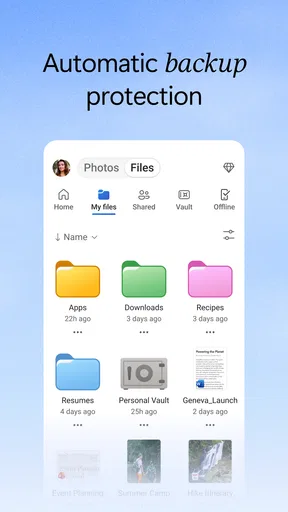
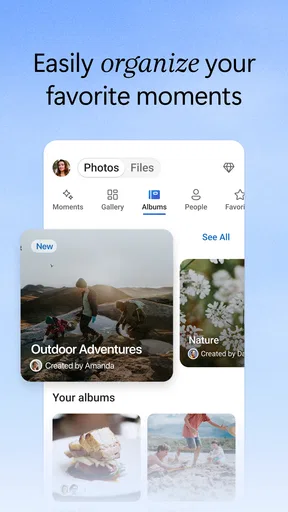
What’s even cooler is how OneDrive handles file management. You can organize files into folders, and the search functionality is top-notch. Looking for that one document from last year? A quick search will have it in front of you in seconds.
Sync and Share Like a Pro
Now, let’s talk about syncing. OneDrive excels in keeping your files updated across multiple devices. Whether you’re on your phone, tablet, or desktop, rest assured that your files are always in sync. I found this feature incredibly handy when working on a project across different devices.
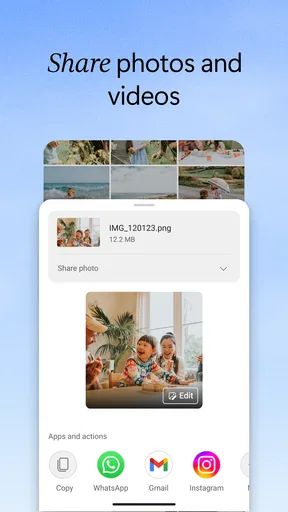
Sharing files is another area where OneDrive shines. You can share documents with friends or colleagues easily by sending a link. Plus, you have control over the permissions, so you can decide whether others can edit the files or just view them. It’s collaboration made simple.
Worth Reading Before You Choose

Switching to Android Auto Means Rethinking Your Driving Routine

Google Calendar Makes a Crowded Week Easier to Manage

Baby Panda World Brings Quick Play to Modern Phones, but Its Game Library Feels Busy

ESPN’s Live Game View Makes Following Close Games Easier

QuizzLand Review: A Good Fit for Short Trivia Breaks, Not Every Player

Basketball Stars: Multiplayer Is Fast, but Can It Recover When Matches Go Wrong?
Security and Privacy
Security is a big deal for me, and I’m sure it is for you too. Microsoft doesn’t skimp on security features. OneDrive uses encryption to keep your data safe, and there’s even a Personal Vault for your most sensitive files. This adds an extra layer of protection with identity verification, like a fingerprint or PIN. It’s like having a digital safe right in your pocket.
Integration and Accessibility
What sets OneDrive apart from other cloud services is its seamless integration with other apps and platforms. Whether it's syncing with your Windows 10 PC or accessing files through Office 365, everything feels interconnected. Even if you’re working on a non-Microsoft device, OneDrive’s web interface is smooth and accessible.
Accessibility is another strength. The app is designed to be user-friendly, with options to view files offline and a neat feature that lets you scan documents using your phone’s camera. It’s like having a portable scanner in your pocket, perfect for those important documents you need on the go.
Where Setup and Sync Can Get Tricky
The first practical snag is choosing the right account. If you have more than one Microsoft login, it is easy to upload a file to a personal space when you meant to use a work or school account. I’d check the account shown in the app before moving a large batch of photos or documents. A little care at the start can save the awkward task of locating files in the wrong place later.
Another point worth checking is whether the phone is actually allowed to finish its background work. If a photo or document does not appear on another device right away, I would open the app, confirm that I am online, and give it time to complete syncing before uploading the same file again. Repeated uploads can create duplicate copies and make the folder harder to tidy.
For a smoother first setup, I’d begin with a small test: upload one ordinary document, open OneDrive on another device or in the web interface, and check that it is visible. Then try sharing a copy with someone you trust and confirm that the permission is appropriate. This simple check helps separate account or sync confusion from problems with a particular file.
A Workflow That Works on a Busy Day
Here is a realistic routine where I find the app useful: I scan a paper receipt or signed form while away from home, save it into a clearly named folder, and later open that file from a computer when I need to attach it to an email or keep it with related paperwork. The camera scan is most useful when I treat it as a quick capture tool, not as a substitute for carefully naming and filing everything. A consistent folder name makes the document much easier to find weeks later.
For shared work, I prefer sending a link to the working document instead of passing around separate copies. That reduces the chance that two people edit different versions and then have to reconcile them. Before sharing, I check whether the recipient needs to make changes or only read the file; limiting access to the intended task is both tidier and more sensible for private material.
Offline access is helpful when I know I’ll need a file away from a reliable connection, but I would prepare before leaving rather than assume every item is already available without internet. I open the needed files while connected and check that they are ready to view. That small habit matters for travel, appointments, or a presentation in a building with poor reception.
Choosing Between OneDrive and Other Storage Apps
Compared with the usual cloud-storage alternatives, OneDrive’s clearest advantage is its fit with Microsoft documents and Windows-based work. If your daily tasks involve Word, Excel, or PowerPoint, keeping files in the same ecosystem can make handoffs feel straightforward. If your household or workplace already uses a different service as its shared hub, however, moving everything to OneDrive may add friction rather than remove it.
I would choose based on the people and devices I need to share with, not just on a storage headline. A service that everyone in a family already understands may be more useful than one with a stronger connection to office software. Likewise, someone who mainly wants a simple place for phone photos may prefer the photo-focused workflow they already use. OneDrive makes the most sense when file access and Microsoft collaboration are regular parts of the day.
It is also worth thinking about how much organization you want to maintain. Cloud storage does not automatically make a chaotic folder structure easier to navigate. I’d use a few broad folders for active projects, personal records, and items to share, then rely on search for occasional older files. If you prefer a fully automatic, hands-off photo library, you may find a general file-and-document approach less tailored than a dedicated photo service.
When a Missing File Is Not an App Problem
Not every delay points to a fault in OneDrive. A file may still be uploading, the phone may have lost its connection, or you may be looking at a different account or folder on the second device. I’d check those basics first, then reopen the relevant folder and allow the app to refresh. If the file is visible on one device but not another, comparing the account and folder is a sensible next step.
If a shared link does not work for someone, I would verify that I sent the intended link and that its permission matches what the recipient is trying to do. A view-only link will not let someone edit, and a recipient may also be signed into a different account than expected. Rather than sending multiple new links immediately, I’d confirm the original access settings and ask the person to open the right file.
There is a trade-off in trusting any cloud service with important material: convenient access depends on both an account and a working connection for many tasks. I keep especially important records organized and make sure I know how to reach them from another device. For highly sensitive information, I would also think carefully about what I upload and use the app’s extra protection for files that warrant it, rather than treating a vault or encryption as a reason to ignore account security.
Costs, Audience, and Everyday Fit
OneDrive is free to start, while in-app purchases range from under a dollar to around $130 per item. I’d consider a paid option only after checking my actual storage needs and whether the extra capacity fits a routine I already have. If the free space is enough for a few documents and occasional scans, there is no reason to upgrade just because a larger plan exists. If photos and project files regularly crowd the account, a paid plan may be more practical, but it is worth reviewing the purchase details before committing.
The app is rated for Everyone, and Microsoft’s cloud service has been around since August 2012. It has passed five billion installs, which tells me that it is a familiar option for a broad range of users, not that every individual workflow will suit it. I’d recommend it most to people who move files between a phone and a computer, work with Microsoft documents, or need straightforward link sharing. Someone who dislikes managing folders, wants a specialized photo organizer, or already collaborates smoothly on another platform may be happier staying with that alternative.
Final Thoughts
All in all, Microsoft OneDrive is a powerhouse of a cloud storage app. It offers a perfect blend of storage, security, and accessibility. Whether you're managing personal files or juggling work projects, OneDrive has you covered. It’s like having a digital assistant that keeps everything organized, secure, and within reach.
If you haven’t tried OneDrive yet, what are you waiting for? Download it, give it a spin, and experience the convenience for yourself. Happy cloud storing!
Pros
- Seamless integration with Microsoft Office.
- Generous free storage space initially.
- Real-time collaboration on documents.
- Cross-platform accessibility.
- Advanced file-sharing options.
Cons
- Limited offline access capabilities.
- Free version has storage limitations.
- Occasional sync issues.
- Complexity for beginners.
- Requires Microsoft account for full features.
FAQs for Microsoft OneDrive
What is Microsoft OneDrive and how does it work?
Microsoft OneDrive is a cloud storage service that allows users to store files and data online. It syncs files across devices, enabling access from anywhere with an internet connection. You can upload documents, photos, and videos, and share them with others. OneDrive integrates with Microsoft Office, making it easy to collaborate on shared files.
How much storage space does OneDrive offer for free?
Microsoft OneDrive offers 5 GB of free storage to all users. This space can be used to store a variety of file types. For those needing more storage, Microsoft provides subscription plans through Microsoft 365, which offer additional benefits like increased storage and access to Office apps.
Is Microsoft OneDrive secure for storing sensitive information?
Yes, Microsoft OneDrive employs robust security measures to protect your data. It uses encryption for data both in transit and at rest. Furthermore, OneDrive includes features such as two-factor authentication and ransomware detection, ensuring that your files remain secure against unauthorized access and cyber threats.
Can I use OneDrive offline?
Yes, OneDrive allows you to access files offline. You need to set files or folders to be available offline on your device, which downloads them locally. Any changes made offline will sync automatically to the cloud once you reconnect to the internet, ensuring your files are up-to-date across all devices.
Does OneDrive support file sharing and collaboration?
Absolutely, OneDrive supports file sharing and collaboration. You can share files or folders with others by sending a link or inviting people via email. With Office integration, multiple users can simultaneously edit documents in real-time, making it a powerful tool for team collaboration and productivity.


